
Getting Started with AI-Powered LinkedIn Content
A complete beginner's guide to creating engaging LinkedIn posts with Kontent Book. Learn how to generate ideas, create content, add images, and schedule posts in minutes.
Introduction
Creating consistent, high-quality content for LinkedIn can be time-consuming. You stare at a blank page, struggle to find the right words, and wonder if your post will even get noticed.
What if you could create professional LinkedIn content in just 5 minutes?
With Kontent Book, you can. This guide will walk you through everything you need to know to create your first AI-powered LinkedIn post—from brainstorming ideas to scheduling your content.
Let's get started! 🚀
Why Choose Kontent Book?
Before we dive into the how-to, here's why thousands of professionals use Kontent Book:
- ⚡ Speed: Create professional content in 5 minutes (not 5 hours)
- 🎯 Quality: AI-powered content that sounds like you, not a robot
- 📅 Consistency: Schedule posts in advance and never miss a day
- 📊 Multi-Platform: Post to LinkedIn, Twitter, and more from one place
- 💡 Idea Generation: Never run out of content ideas again
Your First Post: A Complete Walkthrough
Let's create your first LinkedIn post together. Follow these steps:
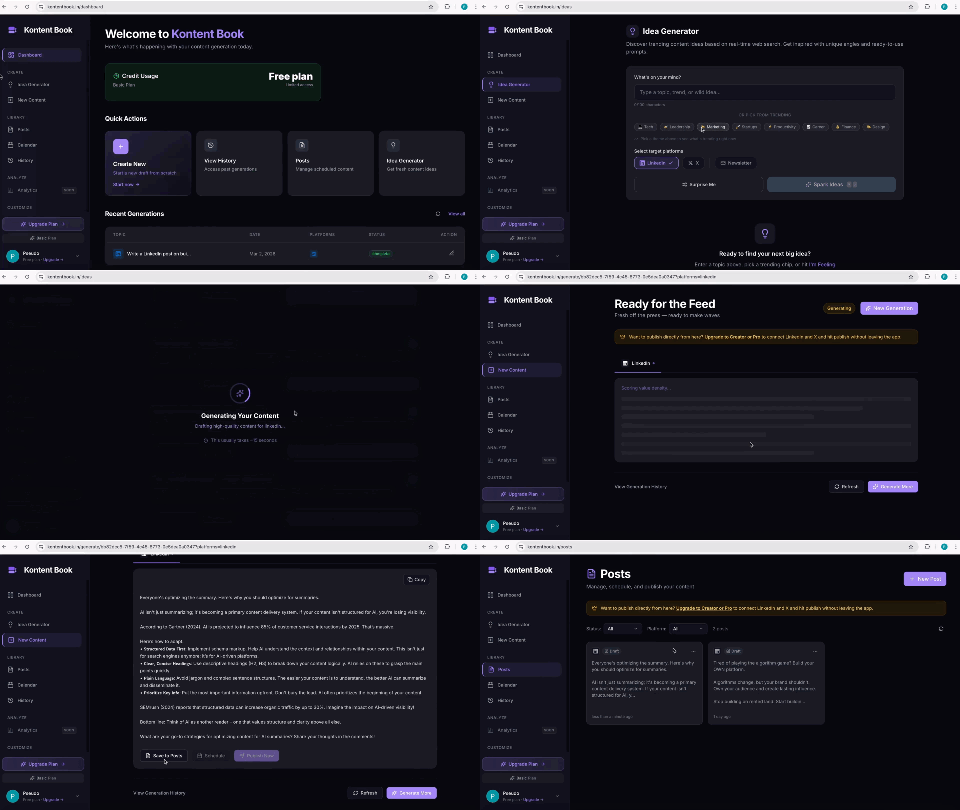
Step 1: Generate Content Ideas
First, you need something to write about. Here's how to use Kontent Book's idea generator:
- Navigate to the Ideas page from your dashboard
- Click "Generate New Idea"
- Enter a topic or keyword (e.g., "productivity tips", "remote work challenges", "AI in marketing")
- Select your tone and style (Professional, Casual, Inspirational, etc.)
- Click "Generate Ideas"
Kontent Book will create multiple content angles for you. Choose the one that resonates most with your audience.
Pro tip: Generate 5-10 ideas at once and save them for future use. This creates a content bank you can draw from anytime!
Step 2: Create Your Post from an Idea
Once you have an idea you like, it's time to turn it into a full post:
- Click on your chosen idea from the Ideas page
- Click "Generate Post" button
- Choose your platform (LinkedIn, Twitter, or Newsletter)
- Select post length (Short, Medium, Long)
- Add context (optional: share specific examples or data you want included)
- Click "Generate"
In seconds, Kontent Book creates a complete, ready-to-publish post. But don't hit publish yet!
Step 3: Refine and Personalize
AI is great, but your unique voice is what makes content authentic. Here's how to refine:
- Read through the generated content
- Edit directly in the editor - Add your personal stories, change wording, or adjust the tone
- Use the Refine button to regenerate specific sections if needed
- Check the engagement score - Kontent Book shows you how likely your post is to perform well
Always review AI-generated content before publishing. Add your personal touch—it's what makes you stand out!
Step 4: Add Images to Your Post
Visual content gets 94% more views than text-only posts. Here's how to add images:
Option 1: Upload Your Own Image
- Click the "Add Image" button in the post editor
- Upload from your computer (JPG, PNG, or GIF)
- Crop and position your image for optimal display
- Add alt text for accessibility (optional but recommended)
Option 2: Use AI-Generated Images (Coming Soon)
Kontent Book will soon integrate AI image generation, allowing you to create custom visuals without leaving the platform.
Best practices for images:
- Use high-quality images (at least 1200x630px)
- Ensure images are relevant to your content
- Avoid text-heavy images (they don't perform well on mobile)
- Use your brand colors for consistency
Step 5: Preview Your Post
Before publishing, always preview how your post will look:
- Click "Preview" to see the LinkedIn/Twitter preview
- Check formatting - Emojis, line breaks, hashtags
- Verify image display - Does it look good?
- Read it out loud - Does it sound like you?
Step 6: Post Now or Schedule for Later
You have two options for publishing:
Option A: Post Immediately
- Connect your LinkedIn account (Settings → Social Accounts)
- Click "Post Now"
- Confirm the action
- Your post goes live immediately! 🎉
Option B: Schedule for Optimal Time
Research shows the best times to post on LinkedIn are:
- Tuesday-Thursday, 8-10 AM or 12-2 PM (your audience's timezone)
Here's how to schedule:
- Click "Schedule Post"
- Select date and time
- Choose timezone (automatic for most users)
- Set recurrence (optional - for series posts)
- Click "Schedule"
Your post is now queued! View all scheduled posts in your Calendar view.
Use the Calendar feature to plan your content strategy weeks in advance. Consistency is key to building your LinkedIn presence!
Step 7: Track Performance
After posting, track how your content performs:
- Go to Analytics in your dashboard
- View engagement metrics - Likes, comments, shares, clicks
- Identify top-performing posts - What resonates with your audience?
- Use insights for future content - Double down on what works!
Best Practices for Success
Now that you know how to use Kontent Book, here are pro tips to maximize your results:
Content Strategy
- ✅ Post consistently - Aim for 3-5 times per week
- ✅ Mix content types - Tips, stories, questions, industry news
- ✅ Engage with your network - Comment on others' posts daily
- ✅ Use hashtags strategically - 3-5 relevant hashtags per post
- ✅ Add a clear CTA - Tell people what to do next
Writing Tips
- ✅ Start with a hook - Grab attention in the first line
- ✅ Use short paragraphs - Mobile users prefer scannable content
- ✅ Tell stories - Personal experiences resonate more than facts alone
- ✅ Add your voice - Don't just publish AI content as-is
- ✅ Include data/stats - Credibility builds trust
Visual Content
- ✅ Always use images - Posts with images get 94% more engagement
- ✅ Create branded graphics - Consistency builds recognition
- ✅ Use high-quality photos - Blurry images hurt your brand
- ✅ Add alt text - Make content accessible to all users
Engagement Tactics
- ✅ Reply to all comments - Especially in the first hour
- ✅ Ask questions - Drive conversation in your posts
- ✅ Tag relevant people - When appropriate and genuine
- ✅ Respond promptly - Build relationships through dialogue
Common Mistakes to Avoid
Even with great tools, people make these errors:
❌ Mistake #1: Publishing Without Editing
The Problem: AI-generated content can be generic or miss nuances.
The Fix: Always add personal stories, specific examples, or unique insights before publishing.
❌ Mistake #2: Posting and Ghosting
The Problem: You post great content but never engage with comments.
The Fix: Dedicate 10-15 minutes after posting to respond to every comment. This signals quality to LinkedIn's algorithm.
❌ Mistake #3: Inconsistent Posting
The Problem: Posting once a month won't build momentum.
The Fix: Use Kontent Book's scheduling feature to maintain a consistent cadence. Batch-create content on Sundays for the entire week.
❌ Mistake #4: Ignoring Analytics
The Problem: You don't know what's working, so you can't improve.
The Fix: Review your analytics weekly. Note patterns in your top-performing posts and create more of that type of content.
❌ Mistake #5: Being Too Promotional
The Problem: Every post is a sales pitch.
The Fix: Follow the 80/20 rule—80% value-driven content, 20% promotional. Build trust first, sell second.
Advanced Features to Explore
Once you're comfortable with the basics, explore these powerful features:
Multi-Platform Publishing
- Post to LinkedIn, Twitter, and newsletters from one interface
- Customize content for each platform
- Schedule cross-platform campaigns
Content Calendar
- Visualize your entire content strategy
- Drag-and-drop to reschedule posts
- See gaps in your publishing schedule
- Plan content themes in advance
Team Collaboration (Pro/Elite)
- Invite team members to contribute
- Set approval workflows
- Assign roles and permissions
- Collaborate on content creation
Analytics & Insights (Pro/Elite)
- Deep dive into engagement patterns
- Compare post performance
- Identify best times to post
- Track follower growth
- Export data for reports
Your 7-Day Quick Start Challenge
Want to see real results? Follow this 7-day plan:
Day 1: Create your account and connect LinkedIn Day 2: Generate 10 content ideas and save them Day 3: Create and post your first piece of content Day 4: Create and schedule 3 posts for next week Day 5: Engage with your network (comment on 10 posts) Day 6: Review analytics and refine your strategy Day 7: Plan your content calendar for the next month
By the end of week one, you'll have a system that works!
Quick Reference Checklist
Save this checklist for creating each post:
- Generate or select an idea
- Create initial draft with AI
- Add personal insights and examples
- Edit for your unique voice
- Add a compelling image
- Write an attention-grabbing first line
- Include 3-5 relevant hashtags
- Add a clear call-to-action
- Preview on mobile and desktop
- Schedule or post immediately
- Engage with comments for first hour
Frequently Asked Questions
Q: How long does it take to create a post? A: With Kontent Book, you can create a post in 5-10 minutes. As you get more familiar with the platform, this drops to 2-3 minutes.
Q: Will my posts sound robotic? A: Not if you edit them! AI provides the structure and ideas, but adding your personal stories and insights makes content authentic.
Q: How many credits does it take to generate a post? A: One complete post generation uses 1 credit. Idea generation is free!
Q: Can I post to multiple platforms at once? A: Yes! Kontent Book supports cross-posting to LinkedIn, Twitter, and newsletters.
Q: What if I don't like the AI-generated content? A: Click "Regenerate" for a fresh version, or use the editor to manually adjust any part of the content.
Q: How do I know the best time to post? A: Check your Analytics dashboard to see when your audience is most active. Generally, Tuesday-Thursday mornings work best for B2B content.
Conclusion
You now have everything you need to create professional LinkedIn content in minutes instead of hours. The secret isn't just the AI—it's combining AI efficiency with your authentic voice and expertise.
Remember:
- AI handles the heavy lifting (structure, drafts, ideas)
- You add the magic (stories, personality, insights)
- Consistency + Quality = LinkedIn Growth
Don't overthink it. Start with one post this week. Then build momentum.
Ready to Transform Your LinkedIn Presence?
Get started with Kontent Book →
- ✅ Free plan available (no credit card required)
- ✅ Create your first post in 5 minutes
- ✅ Join thousands of professionals growing their brands
What type of content would you like help creating? Drop a comment below and I'll point you to the right resources! 👇
Looking for more tips? Check out our guides on:
About Kontent Book Team
Creating valuable content to help you master LinkedIn and build your thought leadership with AI-powered tools.
Related Articles
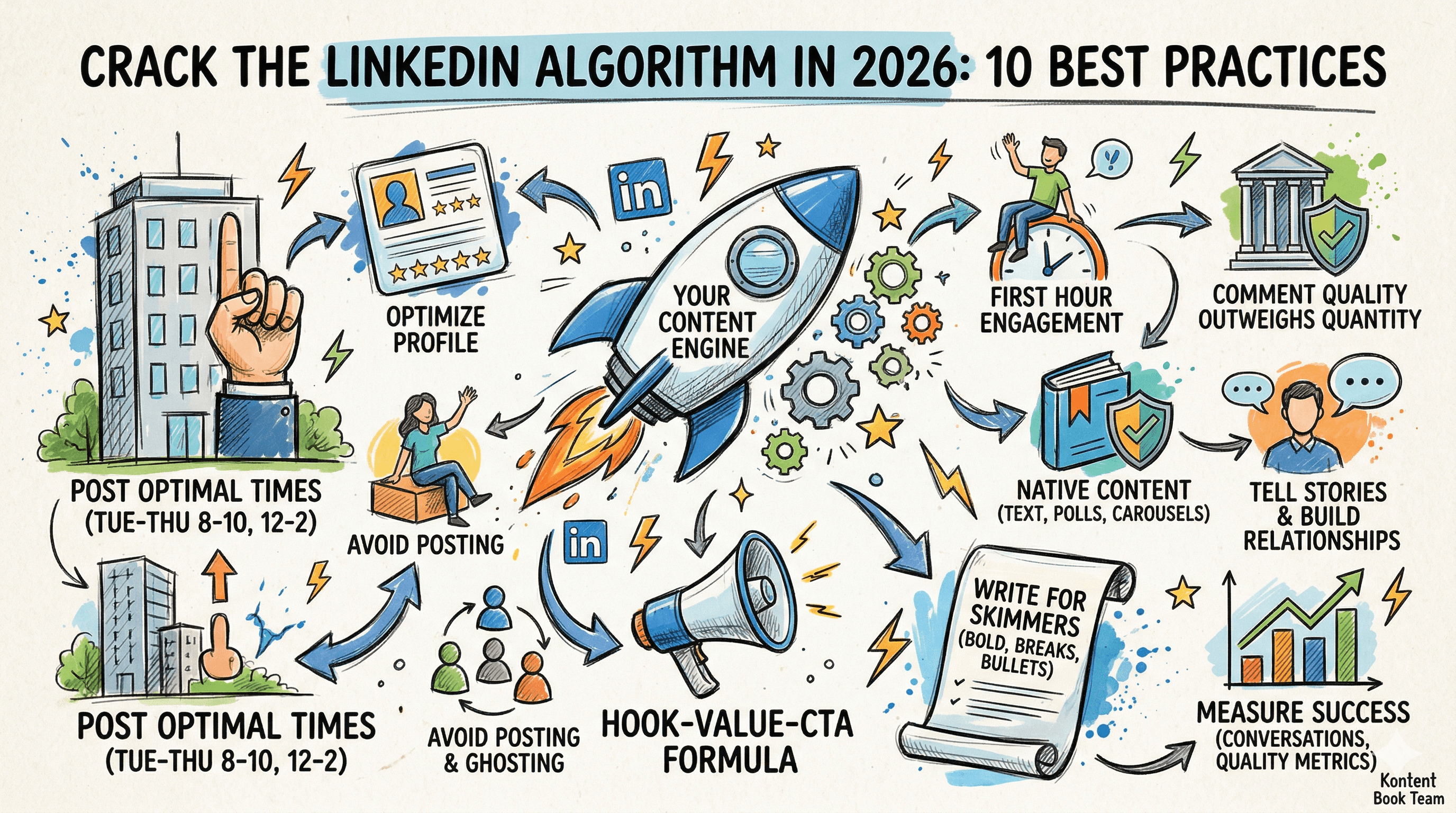
10 LinkedIn Best Practices for Maximum Engagement in 2026
Discover the proven strategies and tactics that top creators use to maximize their LinkedIn engagement and build a powerful professional brand.
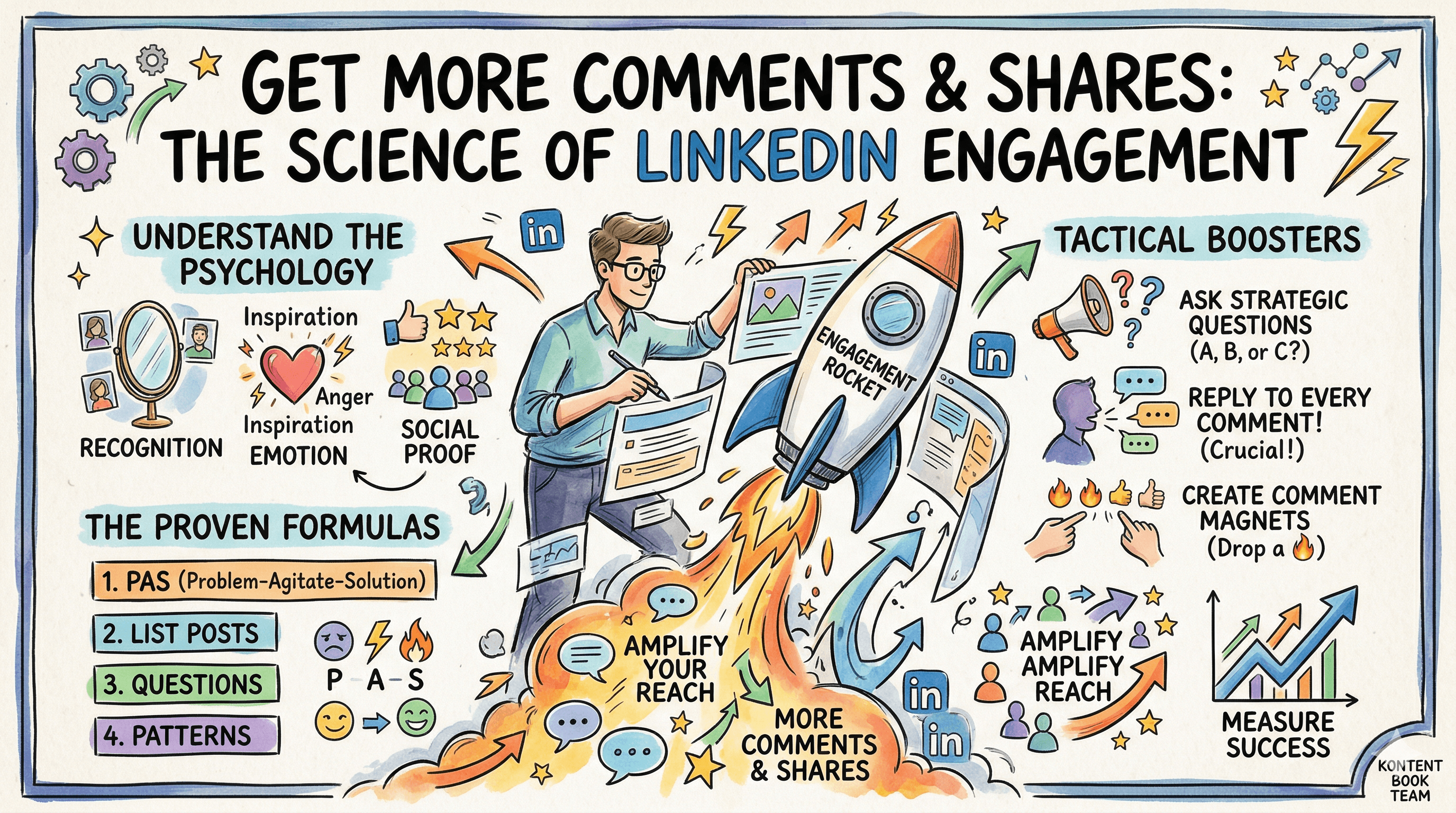
The Science of LinkedIn Engagement: How to Get More Comments and Shares
Understand the psychology and tactics behind high-engagement LinkedIn posts. Learn the proven formulas that drive conversations and amplify your reach.